The Frank AI video trend takes a short reference clip, then swaps the people in it for two photos that you upload. The motion, camera and timing stay the same, and the faces and clothes change. It is used for funny, light scenes.
This page gives the one prompt for Google Flow, the tags to type, and the steps to add the original sound afterwards.
What the sample shows
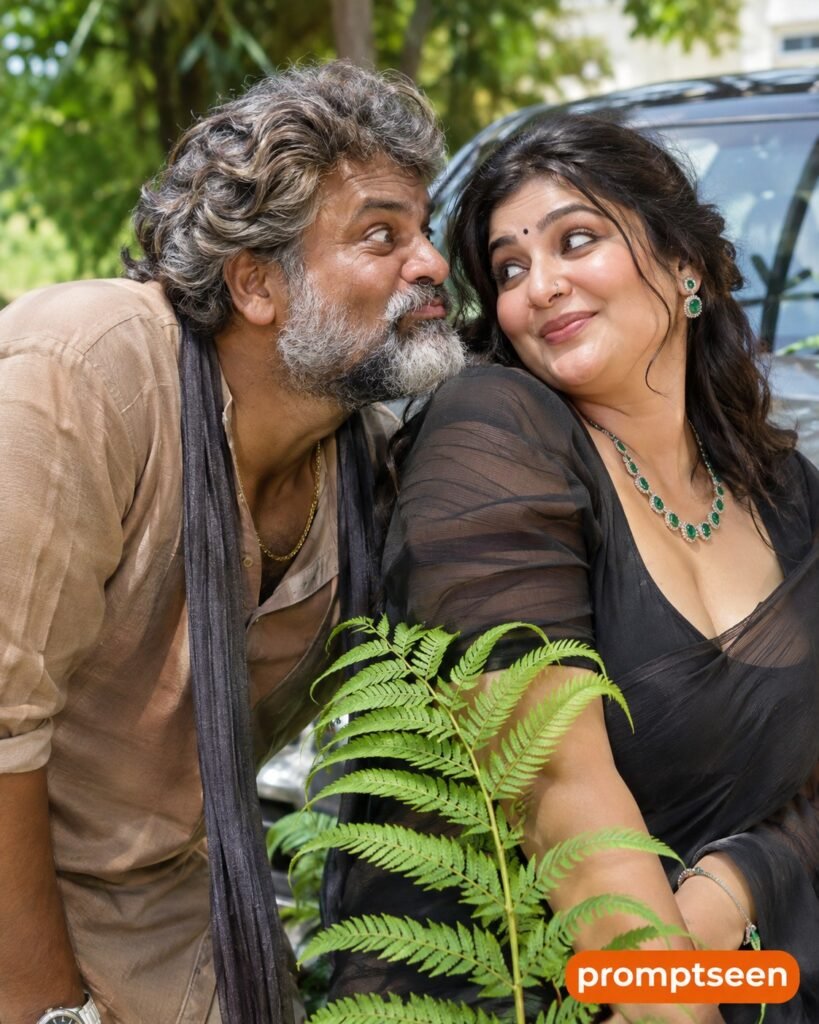
The sample picture shows the kind of scene the trend uses: two people close together, one leaning toward the other, with a fern leaf and a car behind them. The reference clip has the same kind of close, playful framing.
Use this only as a guide for the look. Do not use the photo of real people as your own reference, and make sure you have permission for any photo you upload.
The video prompt
Paste this prompt after you have uploaded the reference video and both photos, and tagged them as described in the steps below.
Use @video1 as the strict reference for all actions, gestures, interactions, timing, camera movements, framing, and editing.

Replace the Men character with @image1 and the Women character with @image2. Preserve each image reference’s complete character design: face, hair, body proportions, colors, clothing, and distinctive details. Reproduce the video’s expressions and emotions naturally while keeping both characters recognizable and consistent throughout.

Keep the original environment, lighting, duration, aspect ratio, and audio. Change only the characters’ appearance.

NEGATIVES: identity swaps, mixed character features, appearance drift, altered actions, extra characters, distorted faces, extra limbs, flickering, new scenes, text, watermarks.
Tags to type in Google Flow
Type @ in the prompt box and pick the right file each time: @video1 is the muted reference video, @image1 is the first person’s photo, and @image2 is the second person’s photo. The prompt uses these tags, so check each one before you generate.
Steps to make the video
These steps follow the Google Flow workflow.
- Use a muted reference video. A version with no sound, so the new audio is not mixed in.
- Open Google Flow and start a new project. Choose the ingredients mode if your version has it.
- Upload the reference video and both photos. Clear, front-facing photos work best.
- Paste the prompt and tag the files. Use @video1, @image1 and @image2 exactly as shown.
- Choose 9:16 and generate. Download the clip when it is ready.
- Add the original audio. Import the clip and the audio into VN or CapCut, then line up the timing.
Tips for a better result
The tags and the photos decide most of the result.
- Use a simple reference. One clear action with one or two people works best.
- Pick photos with good light. Dark or side-on photos make the faces harder to keep.
- Check the first second. If the face changes early, regenerate before you trim.
- Match the audio timing. Move the sound until it lines up with the action.
What goes wrong
These are the problems people meet most.
The face drifts
The photo is small or the light is poor.
Fix: use a larger, sharper photo of that person.
The wrong person appears
The tags were mixed up.
Fix: check @image1 and @image2 and generate again.
The video has sound already
The reference was not muted.
Fix: use a muted copy of the reference.
The motion does not match
The reference is too busy.
Fix: choose a simpler reference clip.
How the @ tags work
The prompt uses tags: @video1 for the movement and @image1 and @image2 for the two people. The tool then replaces the two characters in the video with the people in your pictures, while the actions, timing and camera stay as in the video. Type the tags exactly as the post shows, with the same numbers.
In the example the pair are a man with grey wavy hair and a beard and a woman in black with a green necklace. Your result will carry your own faces, not theirs.
Before you start
Use a video where the two characters are in the frame for most of the time and do not cross each other. If they swap places, the tool may swap faces too.
Only upload photos of people who have agreed. Do not put a real public figure into someone else’s video.
Before you post
Get permission from every person whose face you upload. Do not use the video to make fun of a real person, and say in the caption that it is AI-made. Some platforms do not allow AI videos of real people without a label.
Frequently asked questions about frank ai video editing prompt
Where do I get the reference video?
Use a short clip that you have the right to use, muted. Do not use a clip of someone else without permission.
Can I use my own photos?
Yes, if you and the other person agree. Upload clear photos of each of you.
Why do I need the @ tags?
They tell Google Flow which file is the reference and which is each person.
Can I use a different tool?
The prompt is written for Google Flow. Other tools that accept a reference video and photos may need a different prompt.
Should I label the video as AI?
Yes. Yes. A short label builds trust, and some platforms now require it.
More AI video tutorials
If you like this, here are other pages on Prompt Seen.
Related reading
PromptSeen is run by Rutik Soni. Each post is written around its own example images. Prompts give different results every time, so your picture may not match ours. Read how we work in the Editorial Policy, or write to support@promptseen.co if something is wrong.