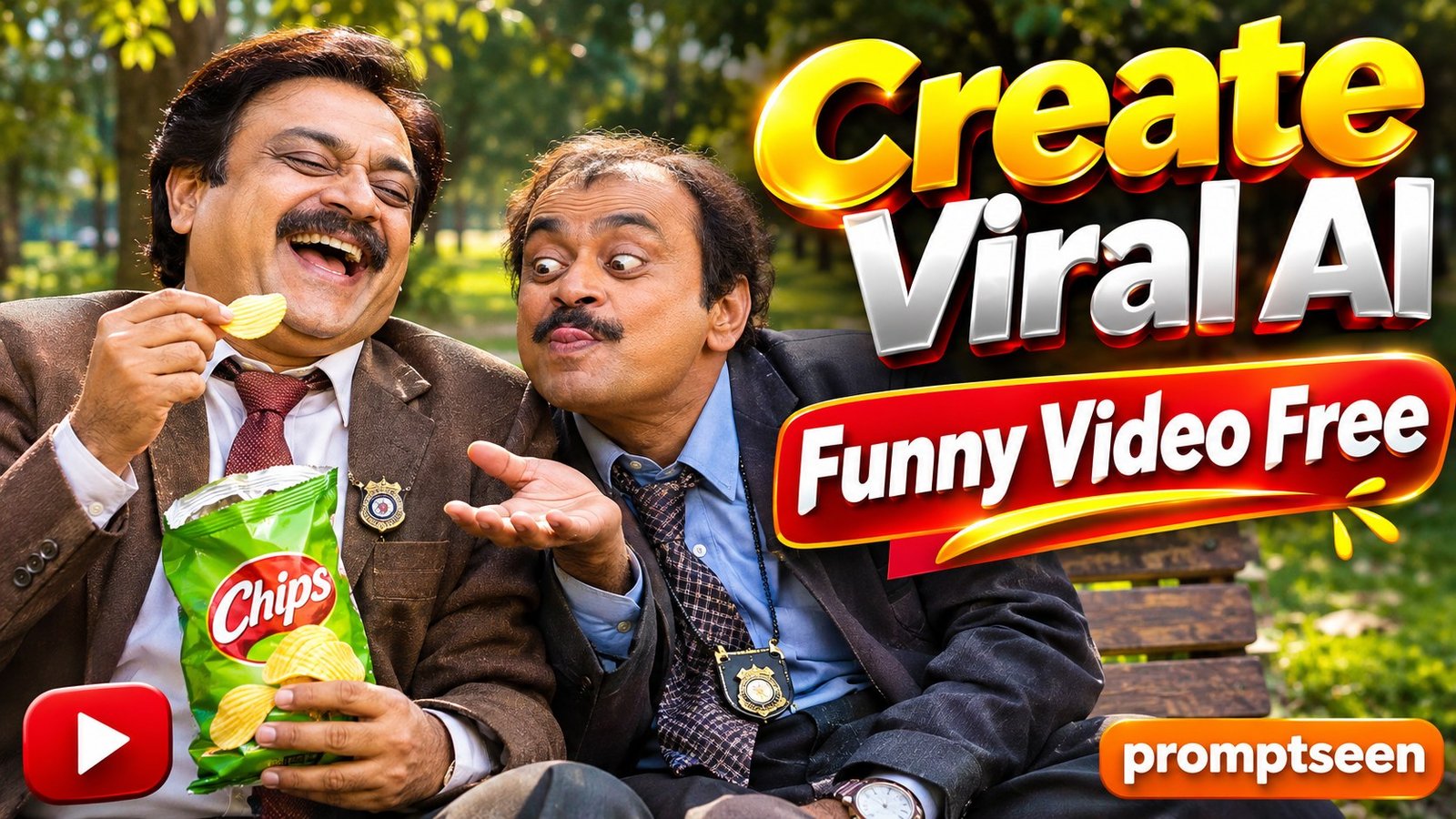
PromptSeen shares the Viral Funny Frank AI Video with CID characters ACP Pradyuman and Senior Inspector Abhijeet is trending on Instagram Reels. In it, Abhijeet eats Lay’s chips without offering any to ACP Pradyuman, and a funny twist follows.
This post gives you the reference video, the full prompt and the Flow AI steps to make your own version. You need one reference video and two character images.
1. Funny chips scene with two replaced characters
Flow AI recreates the reference video, with the actions, movement and camera angles kept the same. The two original characters are replaced with your two images, called @1image and @2image in the prompt.
Save the reference video first, then copy the prompt below. You can use ChatGPT or Gemini to find or prepare the character images.
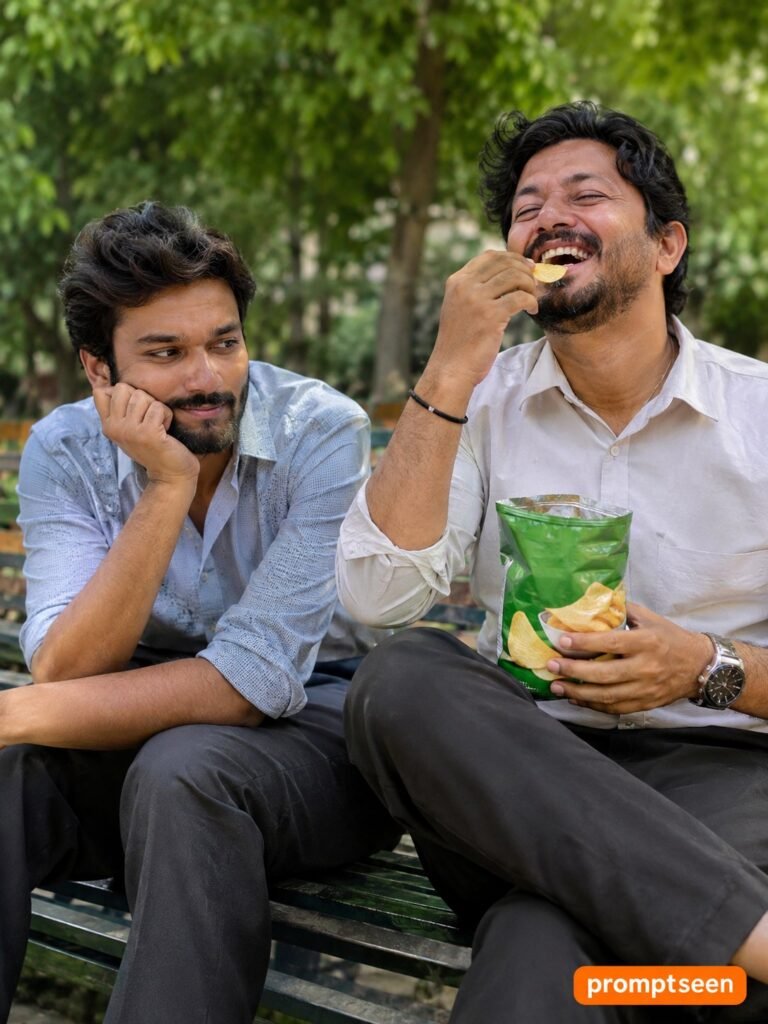
Recreate the uploaded reference video using the same scene, storyline, and sequence of actions. Replace the two original characters with the newly uploaded character reference images, identified as @1image and @2image.
Character Replacement:
Replace the character sitting on the left with @1image.
Replace the character sitting on the right, holding the chips packet, with @2image.
Preserve the identity, facial features, hairstyle, skin tone, clothing, and overall appearance of both reference characters throughout the video.
Follow This Storyline:
The second character sits comfortably on the bench, happily eating chips from a green packet and laughing. Meanwhile, the first character rests his chin on his hand and secretly wishes to have some chips.
The second character offers the chips to the first character. However, the first character politely refuses with a slight head movement, pretending he is not interested.
After a short pause, the first character notices that the second character is not watching and slowly moves his hand towards the open chips packet to secretly grab a chip.
Just before his fingers reach inside the packet, the second character turns around and catches him. The first character immediately withdraws his hand without taking anything.
To hide his intentions, the first character starts making funny finger gestures with his completely empty hand, pretending that he was explaining something important. The second character gives him a suspicious and annoyed look.
At the end, the first character moves closer, puts his arm around the second character's shoulder, and continues acting innocent.
Important Character and Action Instructions:
The first character must never take, touch, hold, or eat any chips.
His hand must remain completely empty throughout the entire video.
Only the second character is allowed to eat chips.
Both characters must maintain their assigned identities without face swapping or mixing.
Keep facial expressions and body movements natural and consistent.
Preserve the original sequence and timing of the comedy scene.
Reference Video Matching Instructions:
Use the uploaded video as the primary visual guide. Maintain its original outdoor environment, bench placement, background, character positions, camera framing, angles, movements, lighting, shadows, and overall visual atmosphere.
Follow the same sequence of interactions, gestures, expressions, and physical movements as closely as possible. Keep the original audio and dialogue where supported by the generation workflow.
Do not introduce additional characters, unrelated actions, new scenes, or unnecessary visual effects. Avoid copying any existing watermark, logo, or unwanted on-screen text.
Final Output:
Generate a realistic, smooth, and entertaining comedy video in which @1image and @2image replace the original characters. Keep their identities consistent from beginning to end and reproduce the reference video's funny storytelling as closely as possible.How to use this prompt in Flow AI
Flow AI is Google’s video tool. It makes cinematic videos from text prompts, images and reference material, so you do not need a camera or editing skills.
- Open Flow AI. Click Generate Your Video above and sign in with your Google account.
- Start a project. Click New Project.
- Upload three files. Add the reference video and two character images, one of you and one of your friend.
- Paste the prompt. Copy the prompt from this page into the prompt box.
- Generate. Click Generate and wait for Flow AI to create the video.
- Save it. Preview the result and download it to your device.
Tips for a better result
Clear inputs give the most accurate funny scene.
- Use clear, front-facing images. Pick two characters with different clothes, so Flow AI does not mix them up.
- Keep the reference video short. The prompt describes one comedy beat, and a long clip makes the timing harder to match.
- Regenerate if the first character takes a chip. The prompt says his hand must stay empty, and a second run often follows it better.
- Mute the reference if it fails. Add the sound back when you edit.
What goes wrong
The most common problems with a prompt like this.
The video does not match the reference
The reference is too long or blurry.
Fix: use a short, clear clip and keep the prompt exactly as given.
The two faces get mixed
The character images look too similar.
Fix: use two clear images with different clothes.
The first character eats a chip
The model ignored the empty-hand rule.
Fix: generate again.
The generation fails
The reference video carries its original sound.
Fix: upload it muted.
Before you post
Say in the caption that the video is AI-made. Only use photos of people who agree to it. The characters come from a TV show, so do not present the video as real footage.
Frequently asked questions about funny frank ai video on PromptSeen
Do I need both character images?
Yes. The prompt refers to them as @1image and @2image, and each one replaces one character in the reference video.
Can I use this prompt for other comedy scenes?
Yes. Keep the structure of character replacement, storyline and matching instructions, and change the scene to your own idea.
Why does the video not match the reference?
Usually the reference is too long or blurry. Use a short, clear clip and keep the prompt exactly as given.
PromptSeen is run by Rutik Soni. Each post is written around its own example images. Prompts give different results every time, so your picture may not match ours. Read how we work in the Editorial Policy, or write to support@promptseen.co if something is wrong.